
DEDICATED
Next-gen Apple silixon, faster builds
For CI/CD and Xcode builds
Ideal for development, testing, browsing, and everyday use.
Stable IP for builds, signing, and firewall rules
Robust, secure, industrial grade
Affordable, fast reliable
High performance for Windows applications
VIRTUAL SERVERS
Rapid provisioning in minutes
Cost-effective choice let's you focus on your business with donfidence
Versatile hosting and apps
Pre-installed cPanel for your websites
SERVICES
Reliable Colocation data center for your server infrastructure.
Professional & Reliable migration service.
NEW
Rent a Mac mini M6
Apple silicon performance for CI/CD, Xcode builds, and app testing. Deploy in minutes.
CLOUD SOLUTIONS
Agentless backup & recovery for cloud environment.
Fully secured environment for your data.
Fully integrated solution to backup & restore.
Boost Availability For Your Business.
Recover & Prevent data loss from disaster powered by Veeam.
Professional Cloud Hosting To Handle Heavy Workloads.
Scalable private cloud solution hosted within Australia.
Build your customer trust and confidence.
Complete, cloud-based website protection.
Increase visibility & scalability of your AWS Cloud.
HOSTING SOLUTIONS
Antispam & Secure email server backed by SmarterMail.
Web Hosting with Premium Security Features.
Simplify Your Management with WordPress Toolkit.
Make More Money by Selling Market Leading Cloud Servers.
Combination of high-performance server with SSD Drive for your business.
The best hosting to increase availability and minimize business overload.
Switch to Casbay Hosting and get exclusive discount on our plans.
DOMAIN HOSTING
Get your domain for local business in Malaysia.
Choose your domain extension with affordable price.
Transfer & Renew Your Domain at Cheapest Price.
Understanding how the life cycle of a domain works.
Protect your private information with Whois.
WHY US
Our vision, history and photo gallery.
Tier III certified data centre in Malaysia.
Understanding Casbay Privacy Policy.
Find out what our clients say about us.
The latest news and media releases.

Renting a Mac in cloud uses real Apple hardware for Xcode builds, iOS testing, and macOS development without needing you buying a physical machine. But once your Mac in cloud is provisioned, how do you actually connect to it? One of the simplest ways is through DeskIn application.
This guide walks you through exactly how you can access your Mac in cloud using DeskIn.
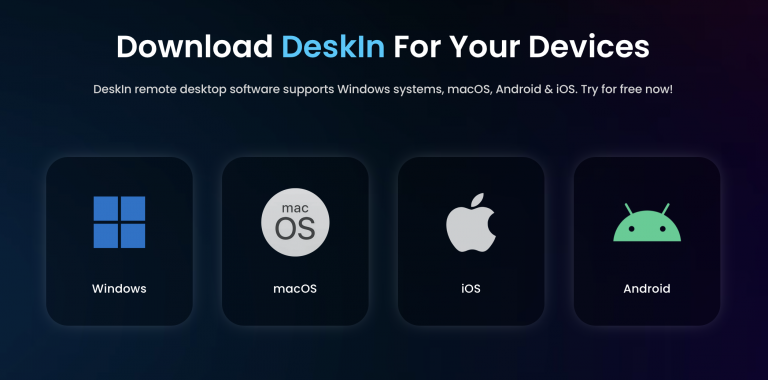
Visit Deskin website and download the Deskin application on your local device (Windows, macOS, iOS, or Android).
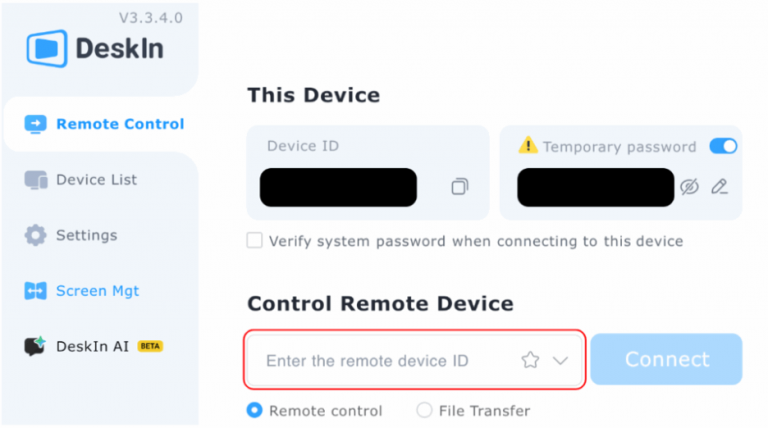
Open DeskIn, Navigate to the Control Remote Device field and input the target Device ID for your rented Mac in cloud.
Click Connect button to begin your remote session.